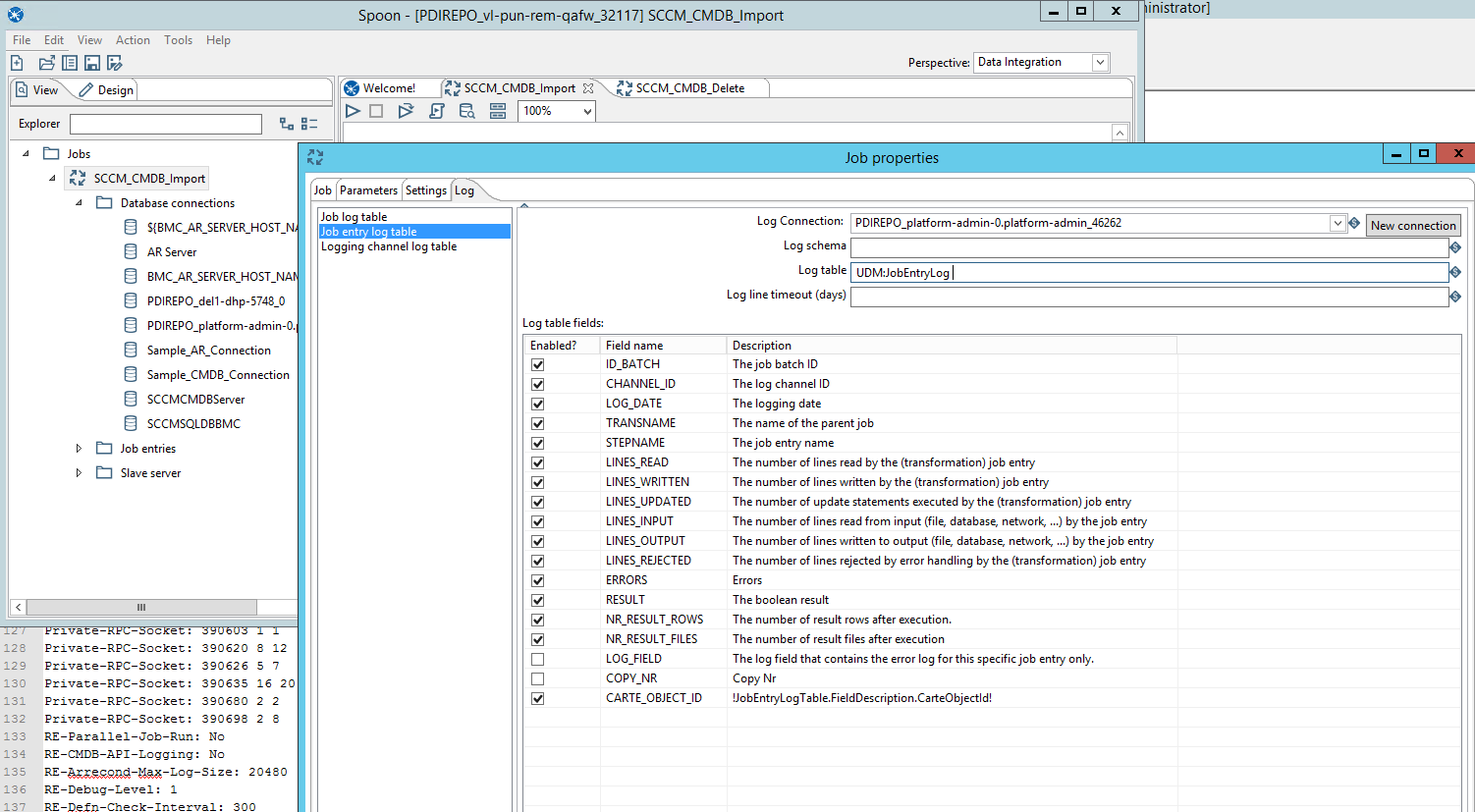
Here is the procedure to deploy SCCM & BCM
- Login to Jenkins machine as the user that owns the git repos
- Navigate to the directory where CUSTOMER_CONFIGS Repo is present. (Location where onprem installer .zip was unzipped to get all Repo folders)
- cd CUSTOMER_CONFIGS
- git clone onprem-remedyserver-config.git
- cd onprem-remedyserver-config
- Open input file and make needed changes:
vi customer/<customer_service>/<customer_service>-<environment>.sh (eg: vi customer/itsm/itsm-poc.sh)
change below parameters values to 'true' and save the file
SCCM="true"
BCM="true"
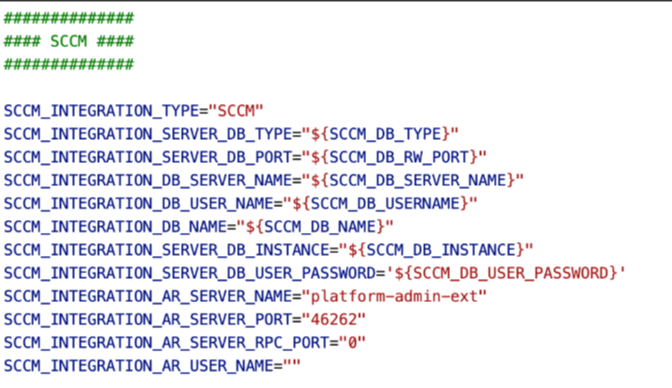
Update the $SCCM with SCCM environment values and SCCM_INTEGRATION_AR_USER_NAME with hannah_admin
- Commit above changes and push to git repo.
git add -A
git commit -am "<commit message>"
git push origin master
Above steps cover the changes to input file to have SCCM and BCM options set to 'true'.
Follow below steps to run HELIX_NON_PLATFORM_DEPLOY pipeline in SERVICE_MODE:
- Open Jenkins app in browser
- Select HELIX_ONPREM_DEPLOYMENT and open the last successful job from Build History pane
- Select 'DEPLOYMENT_MODE' as "SERVICE" under the 'ENVIRONMENT DETAILS' section.
- Select ONLY "HELIX_NON_PLATFORM_DEPLOY" options under "PRODUCT_DEPLOY" section (Please do not select any other pipeline).
- Click Rebuild
This will run HELIX_NON_PLATFORM_DEPLOY pipeline in SERVICE_MODE and deploy SCCM and BCM job containers.
Perform the following post deployment tasks.
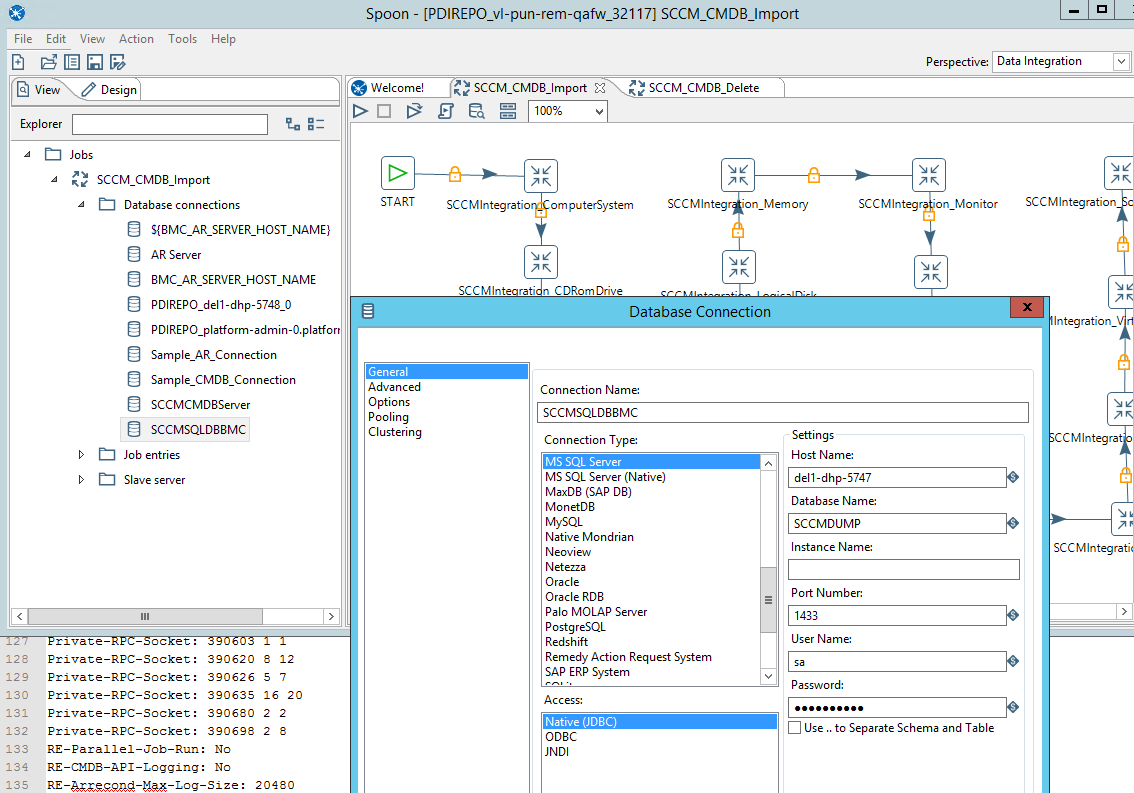
In the Spoon client, specify the database connection values for source, target, and PDI repository server for the SCCM_CMDB_Import and SCCM_CMDB_Delete jobs.
Source server: (SCCM SQL DB server)
-
-
- Log on to the Spoon client.
- Open the SCCM_CMDB_Import job.
- In the Spoon Explorer, select SCCM_CMDB_Import > Database connections > SCCMSQLDBBMC (right click-Edit)> General
- From the Connection Type list, select MS SQL Server.
- From the Access list, select Native (JDBC).
- Specify or replace the values for Host Name, Database Name, Instance Name, Port Number, User Name, and Password fields.
- Click OK.
- Repeat steps from 2 to 7 for the SCCM_CMDB_Delete job.
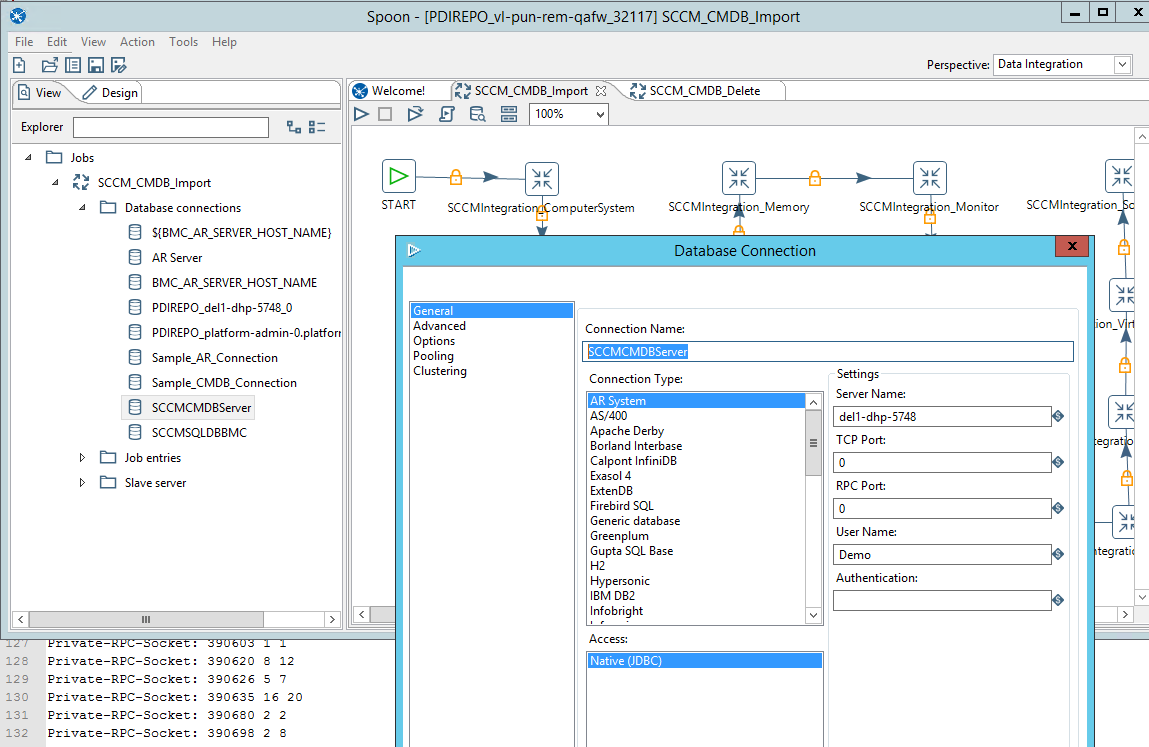
Target server: (AR Server)
-
-
- Log on to the Spoon client.
- Open the SCCM_CMDB_Import job.
- In the Spoon Explorer, select SCCM_CMDB_Import > Database connections > SCCMCMDBServer (Right click ->Edit)> General.
- From the Connection Type list, select AR System.
- From the Access list, select Native (JDBC).
- Specify or replace the values for Server Name, TCP Port, User Name, and Password fields.
- Click OK.
- Repeat steps from 2 to 7 for the SCCM_CMDB_Delete job.
PDI Repository server:
-
-
- Log on to the Spoon client.
- Open the SCCM_CMDB_Import job.
- In the Spoon Explorer, select SCCM_CMDB_Import > Database connections > PDIRepo_Server > General.
- From the Connection Type list, select AR System.
- From the Access list, select Native (JDBC).
- Specify or replace the values for Host Name, Database Name, Instance Name, Port Number, User Name, and Password fields.
- Click OK.
- In the Spoon Explorer, select SCCM_CMDB_Delete > Database connections > PDIRepo_Server > General
- Repeat steps from 3 to 7 for the SCCM_CMDB_Delete job.
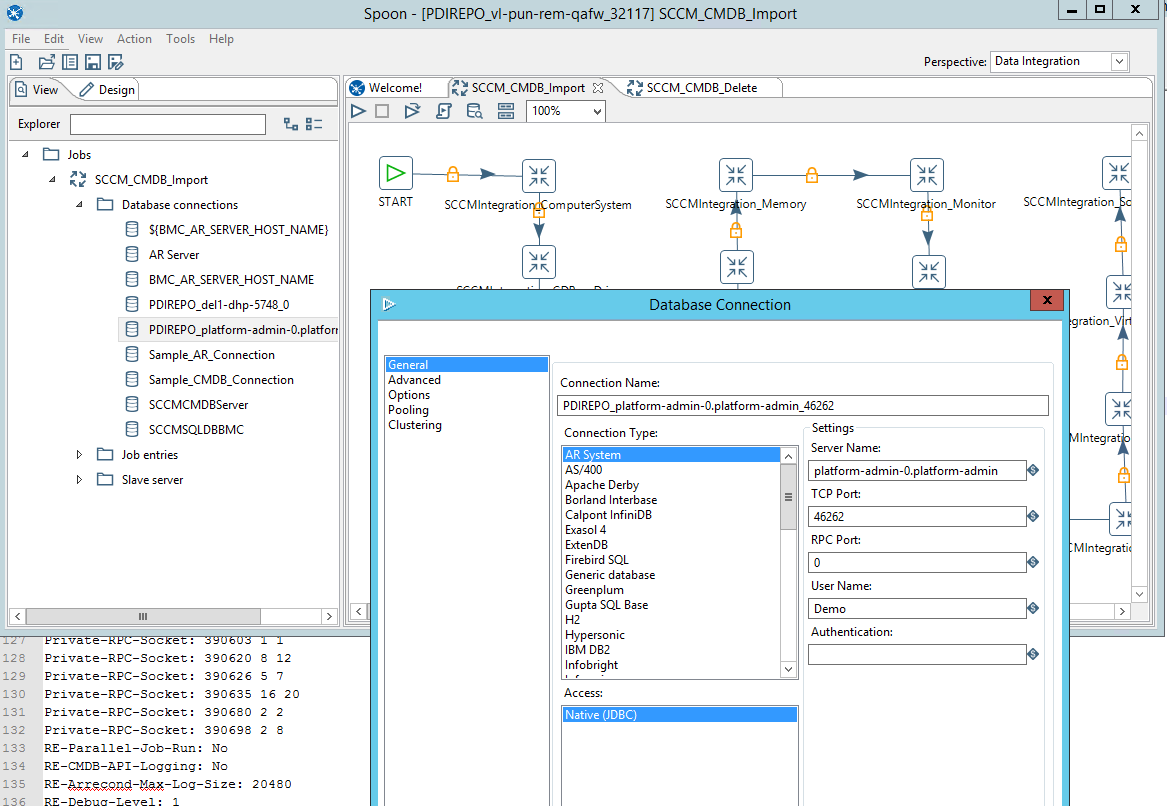
Specify the job log table parameter for the SCCM_CMDB_Import and SCCM_CMDB_Delete jobs.
-
-
- Log on to the Spoon client.
- Open the SCCM_CMDB_Import job.
- Right click SCCM_CMDB_Import job.
- Select Settings > Log tab > Job log table.
- In the Log connection field, specify the name of the PDI Repository server.
- In the Log table field, specify UDM:JobLog table name.
- Click OK.
- Repeat steps from 2 to 7 for the SCCM_CMDB_Delete job.
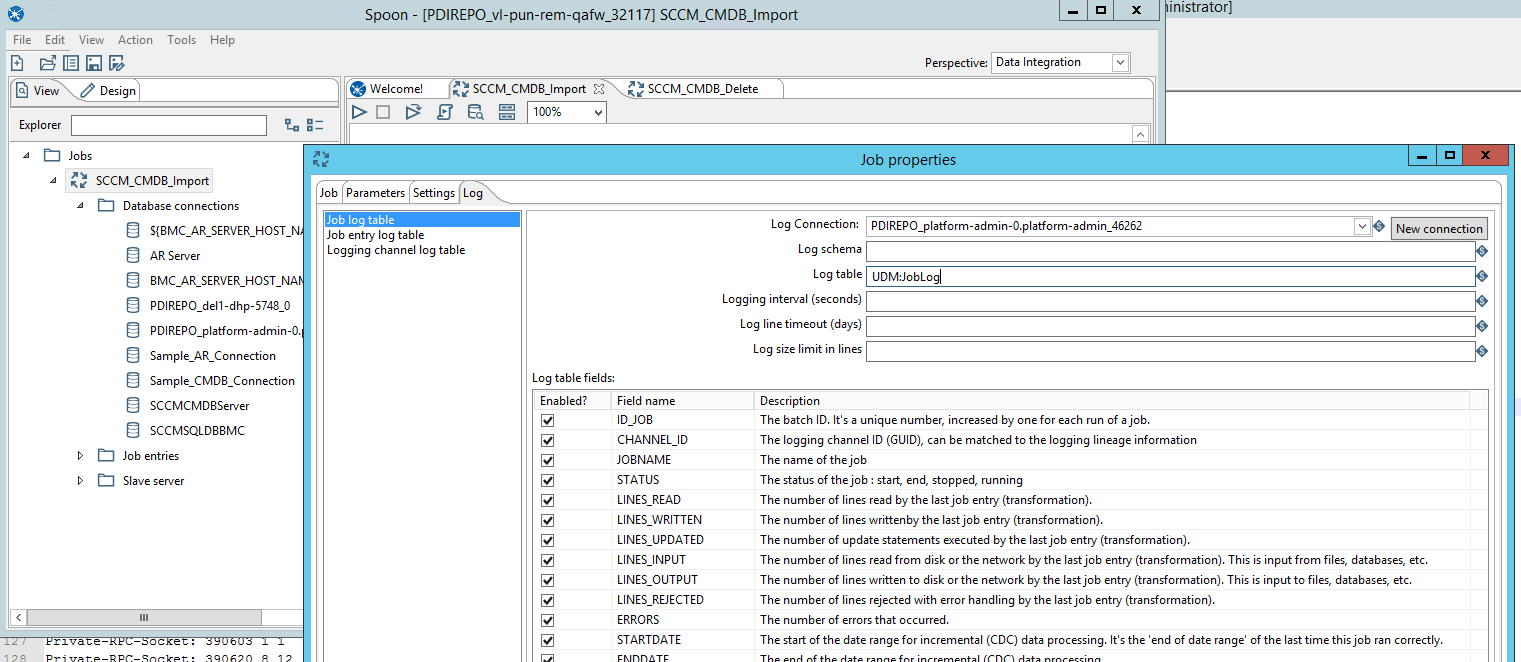
Specify job entry log parameter for the SCCM_CMDB_Import and SCCM_CMDB_Delete jobs.
-
-
- Log on to the Spoon client.
- Open the SCCM_CMDB_Import job.
- Right click SCCM_CMDB_Import job.
- Select Settings > Log tab > Job entry log.
- In the Log connection field, specify the name of the PDI Repository server.
- In the Log table field, specify UDM:JobEntryLog table name.
- Click OK.
- Repeat steps from 1 to 7 for the SCCM_CMDB_Delete job.